A laugh, a song from a party, a pet’s bark — any sound from your videos can become your ringtone. iOS 26 made this easy once you have an audio file.
Step by step
-
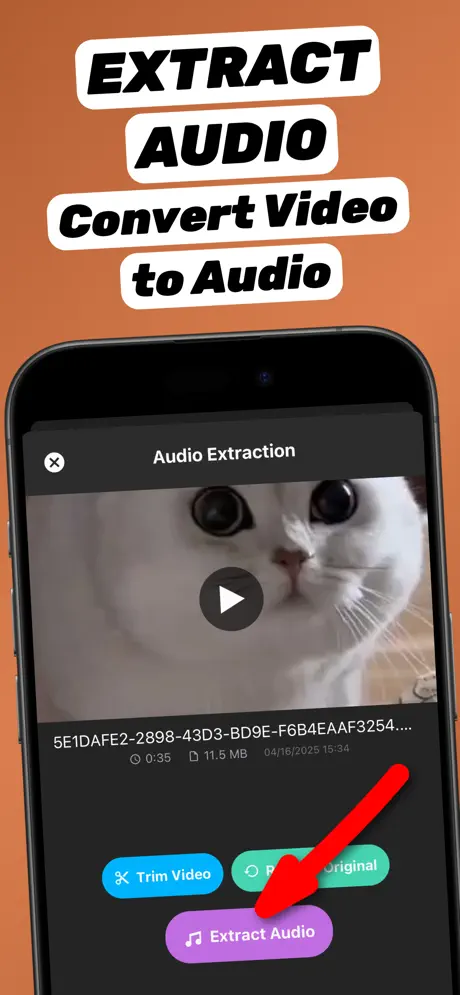
1.Share the video to the app
Open the video in Photos or Files, tap the Share button and choose Extract Audio. The app opens with the video already loaded.
-
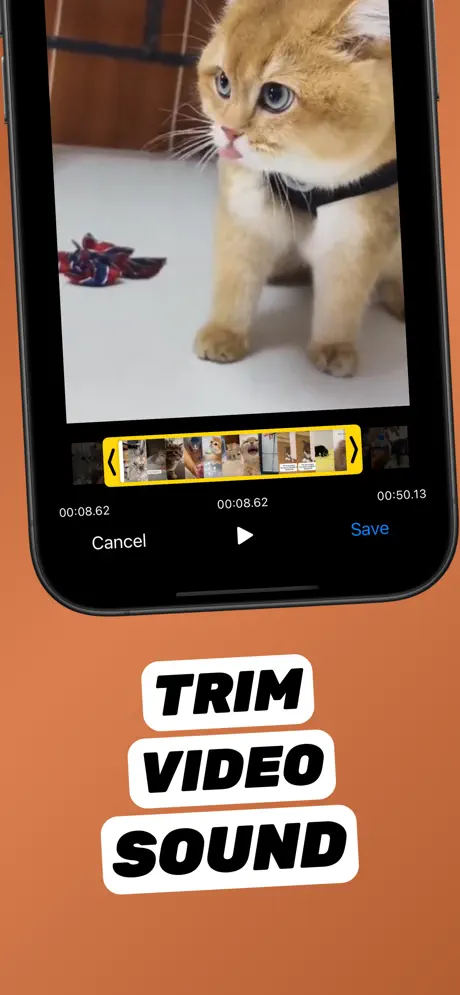
2.Trim to 30 seconds or less
Tap Trim Video and select up to 30 seconds — the ringtone limit.
-
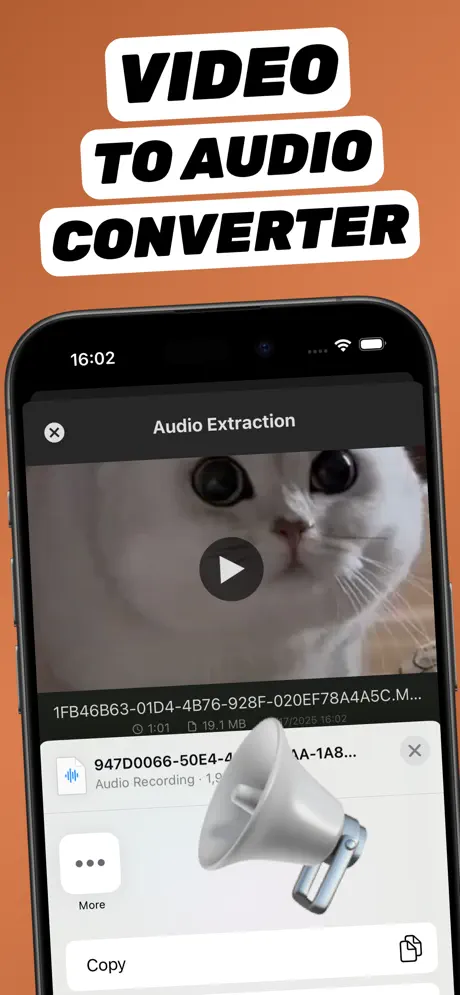
3.Extract and save to Files
Tap Extract Audio (M4A or MP3), then Share → Save to Files.
-
4.Use as Ringtone
In the Files app, long-press the audio file, tap Share and choose Use as Ringtone (iOS 26). Confirm in Settings → Sounds & Haptics → Ringtone.
Extract Audio from Video⁺Free on the App Store · MP3 & M4A · on-device

On iOS 18: the GarageBand method
- Extract and trim the audio as above and save it to Files.
- Open GarageBand, start an Audio Recorder project and switch to Tracks view.
- Tap the Loop Browser → Files → Browse items from the Files app, and drag your audio into a track.
- Go back to My Songs, long-press the project → Share → Ringtone → Export.
Why Use as Ringtone is missing
- The file is longer than 30 seconds — trim it again.
- The file is not MP3 or M4A.
- Your iPhone is not on iOS 26 yet — use the GarageBand method.
Frequently asked questions
How long can an iPhone ringtone be?
Up to 30 seconds for custom ringtones set from audio files.
Which format do I need for an iPhone ringtone?
On iOS 26, MP3 or M4A files under 30 seconds can be set with Use as Ringtone.
Can I set a video as a ringtone directly?
No. Extract the audio from the video first, then set the audio file as the ringtone.