Free iPhone audio extractor
Extract audio from any video on iPhone
Turn MP4 and MOV videos into MP3 or M4A in seconds. Trim to the exact part, save to Files, share anywhere — all on your device.
- MP3 & M4A
- Trim before export
- Works from the Share button
- No upload, no account

 Scan to download on your iPhone
Download
Get the free audio extractor for iPhone
Free to download with core extraction included. Optional in-app purchases unlock extras — start without paying.
- to download
- Free
- output formats
- MP3 · M4A
- app size
- 23.1 MB
- iPhone
- iOS 18.6+
Private by design
Videos are converted on your iPhone. Nothing is uploaded to a server.
Seconds, not minutes
No upload, no queue, no download step. Works offline.
Built into iOS
Share any video from Photos or Files straight to Extract Audio.
Scan to download on your iPhone
Screenshots
See the app in action
Five screens, one job: get the sound out of your video.
-
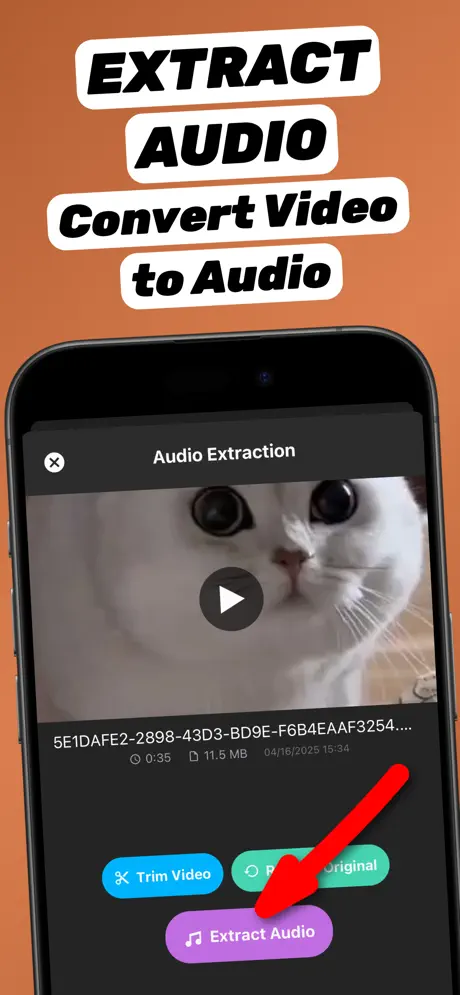
Extract audio from video -
Convert video to audio -
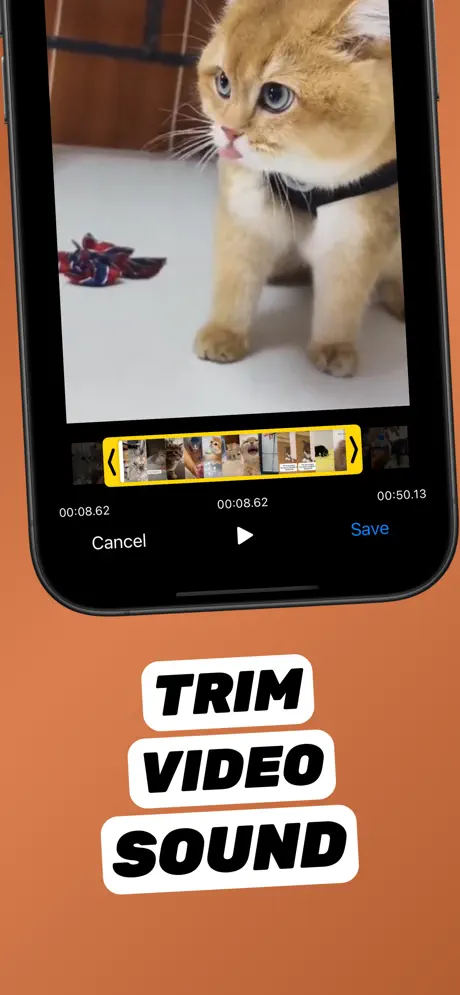
Trim the exact part -
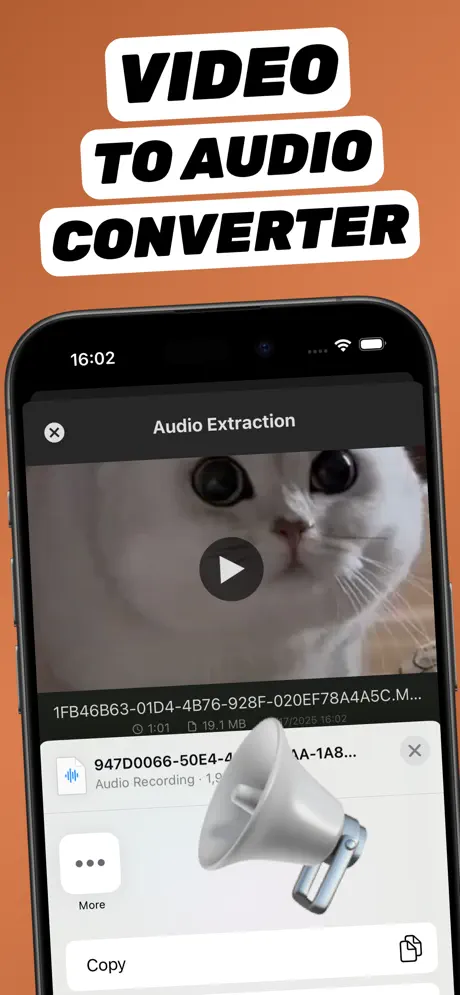
Save or share the file -
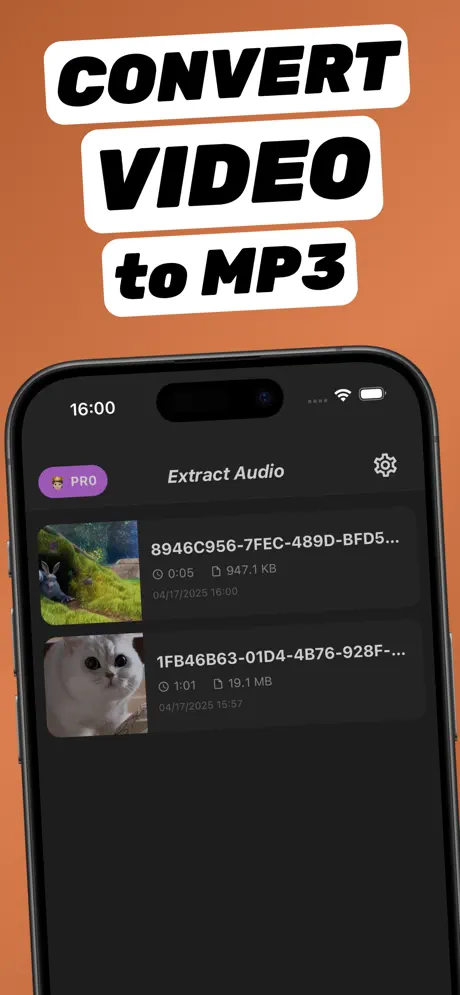
Every file in one library
How it works
How to extract audio from video on iPhone
Four taps from video to MP3 or M4A. Start in the app or from the Share button in Photos.
-
1
Pick a video
Open the app and choose a video from Photos or Files — or tap Share on any video and choose Extract Audio.
-
2
Trim if you need to
Tap Trim Video and drag the yellow handles to keep only the part you want. Optional.
-
3
Tap Extract Audio
The soundtrack is converted to MP3 or M4A on your iPhone in seconds.
-
4
Save or share
Save the audio to Files, AirDrop it, or send it to any app. Every file stays in your library.
Guides
Guides for every video-to-audio job
Step-by-step answers to the questions people search most — with screenshots.
-
Core guide
Extract audio from video on iPhone
The 4-tap method, from Photos or the Share button.
Read guide -
Video to MP3
Convert video to MP3
Turn any iPhone video into a universal MP3 file.
Read guide -
MP4 to MP3
MP4 to MP3 on iPhone
Convert downloaded MP4 files from Files or Photos.
Read guide -
MOV to MP3
MOV to MP3
Turn camera recordings into audio files.
Read guide -
Video to M4A
Video to M4A
Apple-native audio for ringtones and GarageBand.
Read guide -
Shortcuts vs app
Without an app (Shortcuts)
The free Shortcuts recipe — and its limits.
Read guide -
Online vs app
Online vs app
Privacy, speed and limits compared.
Read guide -
Music
Save music from a video
Keep the song, drop the picture.
Read guide -
Trim
Extract only part of the audio
Trim to the exact seconds you need.
Read guide -
Screen recordings
Screen recording to audio
Keep the sound, fix silent recordings.
Read guide -
Study
Lecture video to audio
Study on the go with small MP3 files.
Read guide -
Ringtones
Video to ringtone
iOS 26 Use as Ringtone — in 4 steps.
Read guide
FAQ
Video-to-audio questions, answered
How do I extract audio from a video on iPhone?
Open Extract Audio from Video⁺, pick the video, trim if needed and tap Extract Audio. The soundtrack is saved as MP3 or M4A on your iPhone. You can also start from the Share button in Photos.
Learn moreHow do I convert a video to MP3 on iPhone?
Share the video to Extract Audio, tap Extract Audio and choose MP3. The MP3 is saved on your device and can be sent to Files, AirDrop or any app.
Learn moreCan I convert MP4 to MP3 on iPhone for free?
Yes. Open the MP4 from Files or Photos, share it to Extract Audio and export as MP3. Core conversion is free.
Learn moreHow do I turn an iPhone MOV video into audio?
iPhone camera videos are MOV files. Share the clip from Photos to Extract Audio and export it as MP3 or M4A.
Learn moreCan I save audio from a video as M4A?
Yes. Choose M4A when you extract. M4A is Apple’s native format — smaller than MP3 and ideal for ringtones and GarageBand.
Learn moreCan I extract audio from video on iPhone without an app?
Yes, with a Shortcut that uses Encode Media with Audio Only. It exports M4A only and cannot trim, so an app is faster for MP3 or short clips.
Learn moreIs it safe to extract audio from video online?
Online tools require uploading your video to a server. Extract Audio from Video⁺ converts on your iPhone, so your videos never leave the device.
Learn moreHow do I save a song from a video on my iPhone?
Share the video to Extract Audio, trim around the song and tap Extract Audio. Save music only from videos you own or have rights to.
Learn moreCan I extract only part of the audio from a video?
Yes. Tap Trim Video, drag the handles around the part you need and extract. Only that section is saved.
Learn moreHow do I get the audio from a screen recording?
Screen recordings are videos in Photos. Share one to Extract Audio and export it. If it is silent, the microphone was off while recording.
Learn moreHow can I listen to a lecture video as audio?
Convert the lecture video to MP3 and save it to Files. You can then listen offline with the screen off, using far less storage.
Learn moreCan I make a ringtone from a video on iPhone?
Yes. Trim the audio to 30 seconds, save it to Files, then on iOS 26 tap Share → Use as Ringtone. On older iOS use GarageBand.
Learn more
Your video already has the sound you want.
Get it out in four taps — free, private, on your iPhone.