MOV is Apple’s video container. It is what your camera records — concerts, speeches, a friend playing guitar, a voice you want to keep. Turning it into MP3 gives you an audio file you can play anywhere.
Step by step
-
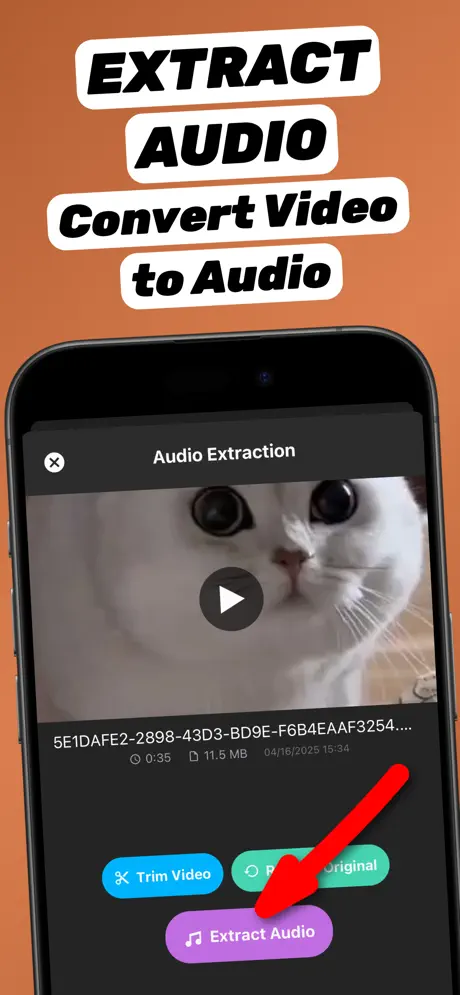
1.Share the video to the app
Open the video in Photos or Files, tap the Share button and choose Extract Audio. The app opens with the video already loaded.
-
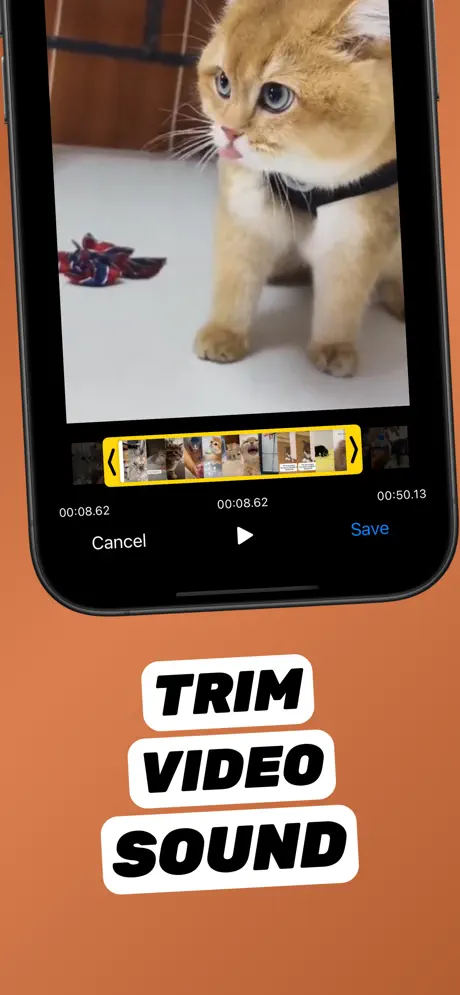
2.Trim to the part you need (optional)
Tap Trim Video, drag the yellow handles to the start and end of the part you want, preview it, and tap Save.
-
3.Tap Extract Audio
Tap Extract Audio. The soundtrack is converted on your iPhone in seconds — nothing is uploaded.
-
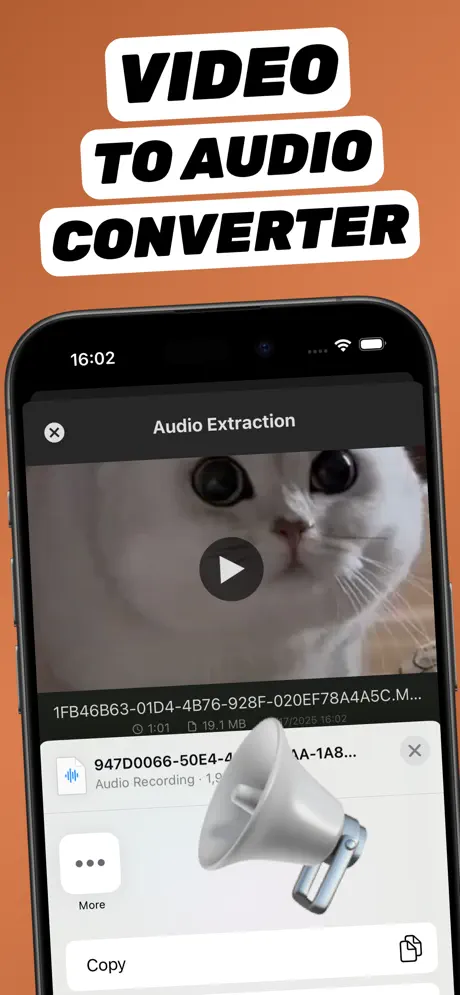
4.Save or share the audio file
The new audio file appears in your library. Tap Share to save it to Files, AirDrop it, or send it to any app.
Extract Audio from Video⁺Free on the App Store · MP3 & M4A · on-device

Great uses for MOV to MP3
- Keep the audio of a live concert or recital you filmed.
- Turn a filmed speech or toast into a keepsake audio file.
- Send a band rehearsal to bandmates without a huge video file.
- Pull a lecture you recorded into audio for your commute.
HEVC, 4K and Cinematic videos
High-efficiency (HEVC) and 4K recordings are converted the same way. Only the sound is processed, so even very large MOV files produce small audio files.
Why not use a computer?
Moving a multi-gigabyte MOV to a computer just to strip the audio takes longer than converting it on the phone. The app does it where the video already is.
Frequently asked questions
What format are iPhone videos?
The iPhone camera records MOV files, usually with HEVC or H.264 video and AAC audio.
Can I convert MOV to MP3 without losing quality?
The app keeps the quality of the original recording. The MP3 will sound like the video does when you play it.
Can I convert a MOV to M4A instead?
Yes. Choose M4A as the output format. It is a good choice for ringtones and Apple apps.