There is no built-in “save audio only” button in Photos, so every method needs some tool. Below are the free options that actually work on an iPhone today, what each one is good at, and where it falls short. Full disclosure: we make Extract Audio from Video⁺, so we list exactly what it does and does not do, next to the alternatives.
Step by step
-
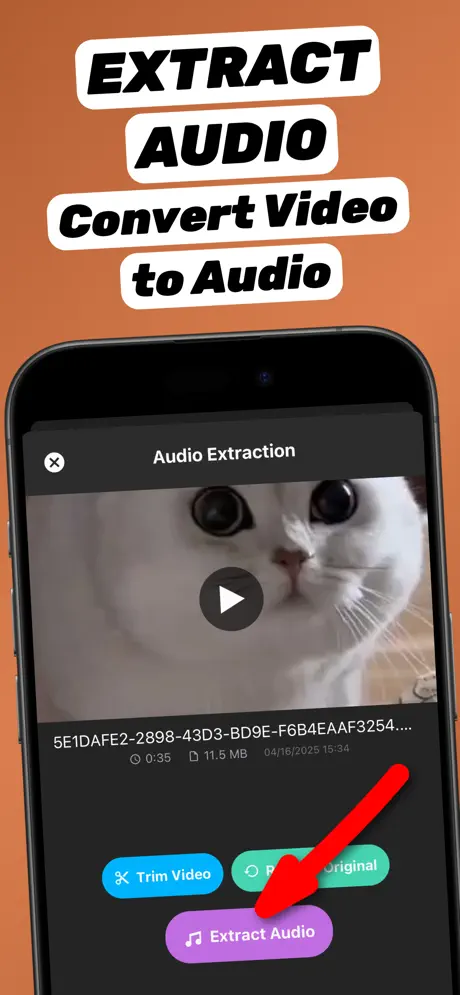
1.Share the video to the app
Open the video in Photos or Files, tap the Share button and choose Extract Audio. The app opens with the video already loaded.
-
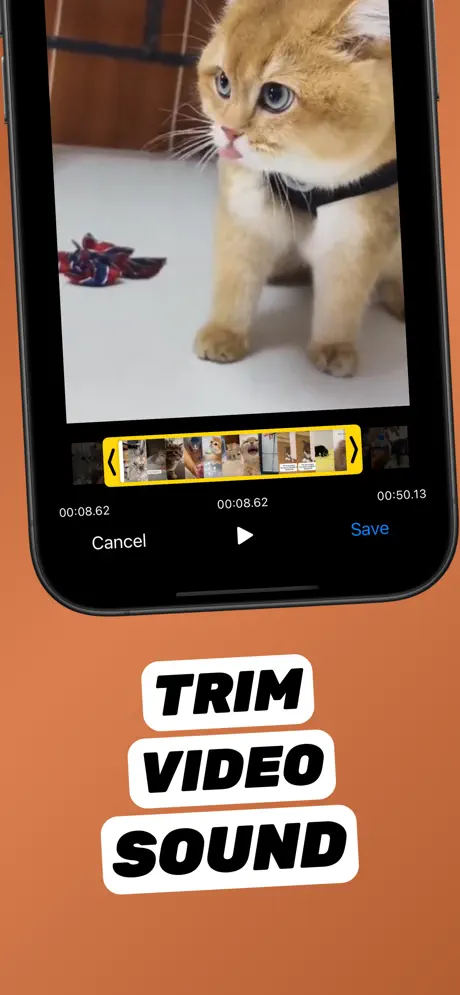
2.Trim to the part you need (optional)
Tap Trim Video, drag the yellow handles to the start and end of the part you want, preview it, and tap Save.
-
3.Tap Extract Audio
Tap Extract Audio. The soundtrack is converted on your iPhone in seconds — nothing is uploaded.
-
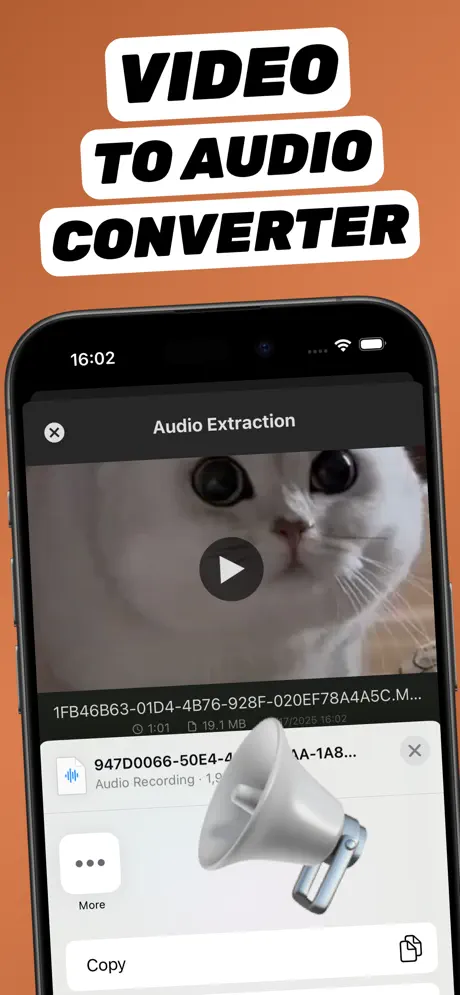
4.Save or share the audio file
The new audio file appears in your library. Tap Share to save it to Files, AirDrop it, or send it to any app.
Extract Audio from Video⁺Free on the App Store · MP3 & M4A · on-device

The options at a glance
| Output | Trim | Upload needed | Cost | |
|---|---|---|---|---|
| Extract Audio from Video⁺ | MP3, M4A | Yes | No | Free core, optional upgrades |
| Apple Shortcuts (“Encode Media”) | M4A | No | No | Free |
| Online converters in Safari | Usually MP3 | Sometimes | Yes | Free with limits |
| Video editors | Varies | Yes | Usually no | Varies |
1. Extract Audio from Video⁺ — best for MP3 and quick clips
A single-purpose app: share a video from Photos or Files, optionally trim it, tap Extract Audio and get an MP3 or M4A in seconds. Everything is processed on the iPhone, it works offline, and every file stays in a library inside the app. Core extraction is free; extra features are optional in-app purchases. Requires iOS 18.6 or later. See the step-by-step guide.
2. Apple Shortcuts — free and built by Apple
Apple’s free Shortcuts app can strip the audio from a video with the Encode Media action set to Audio Only. It costs nothing and needs no third-party app, but the result is always M4A, you cannot trim, and you have to build the shortcut yourself. Recipe: extract audio without an app.
3. Online converters — any device, but you upload
Web converters work in Safari without installing anything and usually output MP3. The catch on a phone: the whole video has to upload over mobile data, free tiers often limit file size, and your video sits on someone else’s server. Fine for public clips on a computer; avoid them for personal recordings. Details: online vs app.
4. Video editors — if you are editing anyway
Some video editing apps can detach or export a soundtrack, but it is usually buried in an editing workflow and export formats vary. Apple’s free iMovie for iPhone exports video, not a separate audio file. If audio is all you need, a dedicated tool is faster.
How to choose
- Need MP3 (car, Windows, Android, web): a dedicated app or an online converter — Shortcuts only makes M4A.
- Need just one part of the video: pick a tool with trimming, e.g. trim audio from a video.
- Private video (family, meetings, lectures): stay on-device — an app or Shortcuts.
- Making a ringtone: M4A under 30 seconds — see video to ringtone.
Frequently asked questions
What is the best free app to extract audio from video on iPhone?
For most people a dedicated on-device app such as Extract Audio from Video⁺: it is free to start, saves MP3 or M4A, trims, and works from the Share button. If you only need M4A and do not want to install anything, Apple’s Shortcuts app also works.
Can I extract audio from a video on iPhone without installing an app?
Yes, with the Shortcuts app (Encode Media → Audio Only), which saves M4A, or with an online converter in Safari, which requires uploading the video.
Do these apps work offline?
On-device options — a dedicated app or Shortcuts — work offline. Online converters need an internet connection for the upload and the download.