Most lectures are about what is said, not what is shown. Converting a lecture video to audio turns it into a podcast you can replay anywhere.
Step by step
-
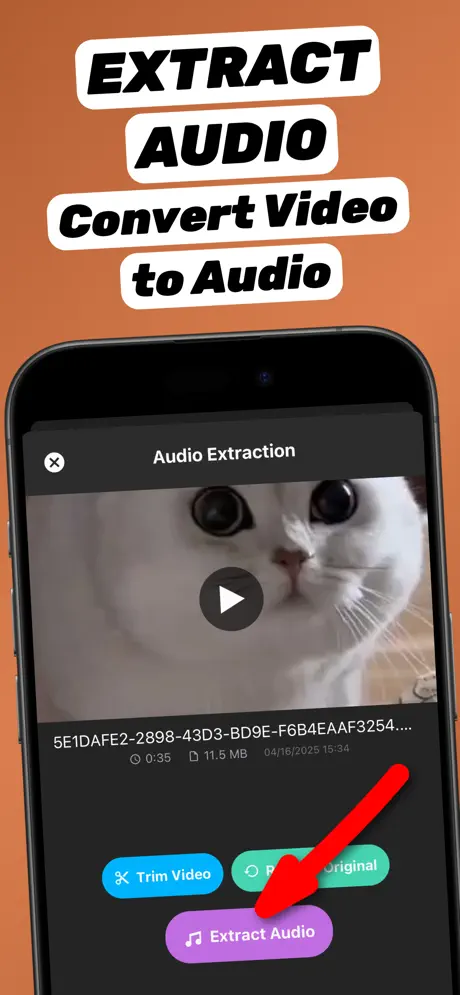
1.Share the video to the app
Open the video in Photos or Files, tap the Share button and choose Extract Audio. The app opens with the video already loaded.
-
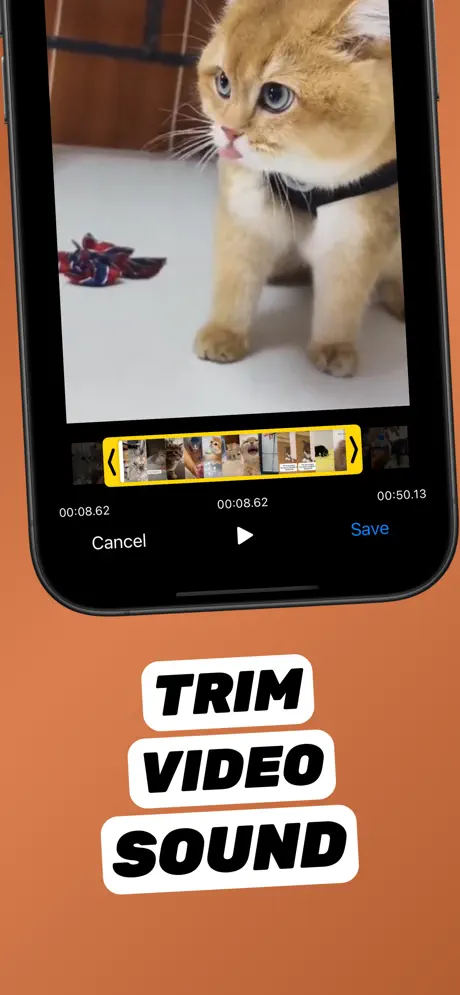
2.Trim the intro and breaks (optional)
Tap Trim Video to cut the waiting time before the lecture starts and any Q&A you don’t need.
-
3.Tap Extract Audio
Tap Extract Audio. The soundtrack is converted on your iPhone in seconds — nothing is uploaded.
-
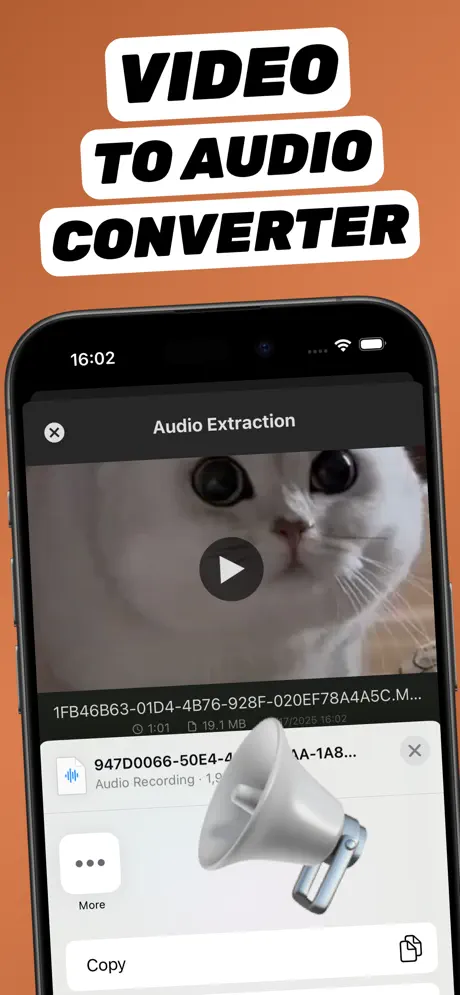
4.Save to a Lectures folder
Tap Share → Save to Files and keep a folder per course so every lecture is easy to find.
Extract Audio from Video⁺Free on the App Store · MP3 & M4A · on-device

Why study with audio
- Tiny files: an hour of audio takes a fraction of the space of an hour of video.
- Screen off: listen with the phone locked, saving battery.
- Anywhere: commute, walk, gym — no Wi-Fi needed.
Turn it into notes
Want text? Import the audio into the transcription app you already use and search the transcript later.
Check the rules first
Many universities allow personal recordings but not sharing them. Check your course policy before recording or distributing a lecture.
Frequently asked questions
Can I listen to a video with the screen off on iPhone?
Most video players pause when the screen locks. Converting the video to MP3 lets you listen with the screen off in Files or any audio player.
Does an hour-long lecture work?
Yes. Long recordings work the same way; they just take a little longer to convert.
Can I convert Zoom or webinar recordings?
Yes, once the MP4 recording is in Photos or Files on your iPhone.