iPhone has no built-in “save audio only” button in Photos. You can build a Shortcut (see the no-app method) or upload the clip to a website, but both are slow when you just want the sound. This guide shows the fastest way: a free audio extractor app that works straight from the Share button.
Step by step
-
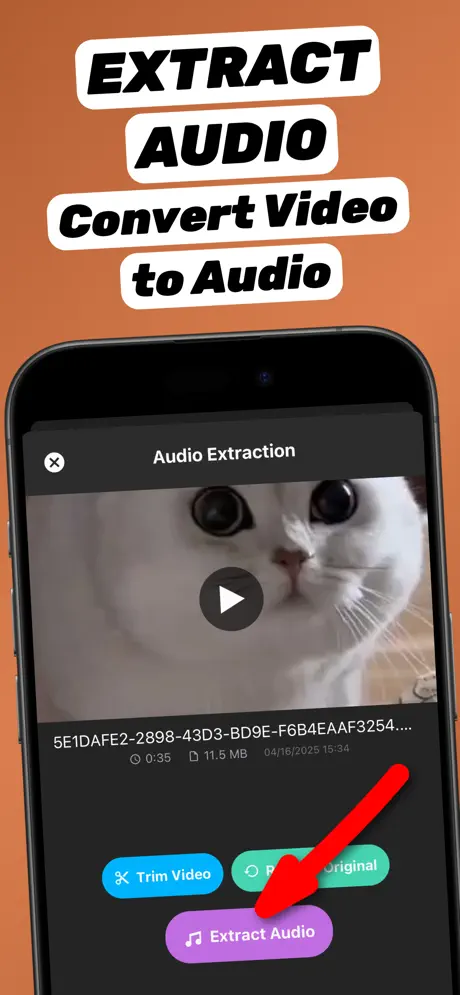
1.Open the app and pick a video
Launch Extract Audio from Video⁺ and choose a video from your Photos library or the Files app. Shortcut: in Photos, tap Share on the video and choose Extract Audio.
-
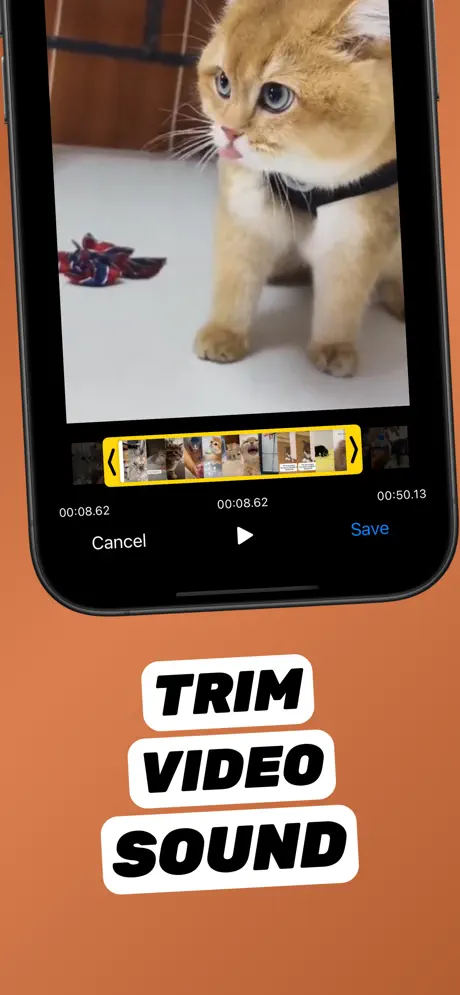
2.Trim to the part you need (optional)
Tap Trim Video, drag the yellow handles to the start and end of the part you want, preview it, and tap Save.
-
3.Tap Extract Audio
Tap Extract Audio. The soundtrack is converted on your iPhone in seconds — nothing is uploaded.
-
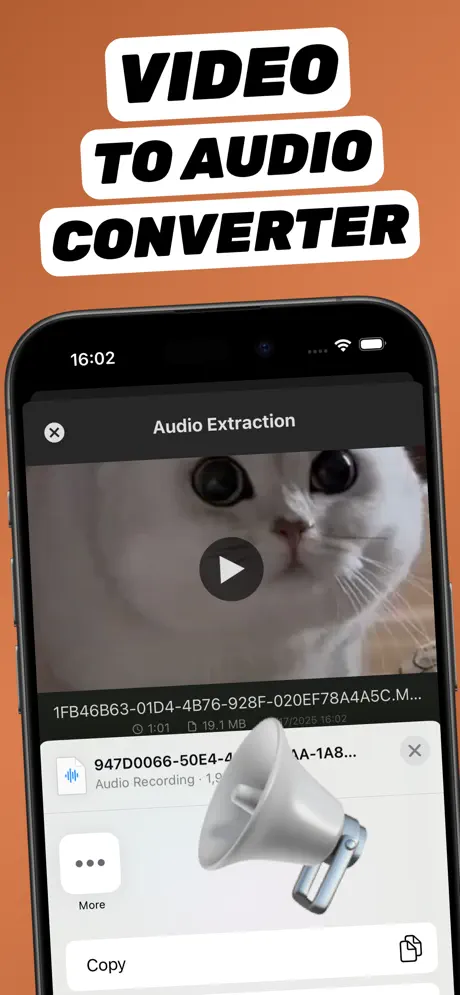
4.Save or share the audio file
The new audio file appears in your library. Tap Share to save it to Files, AirDrop it, or send it to any app.
Extract Audio from Video⁺Free on the App Store · MP3 & M4A · on-device

What you need
- An iPhone on iOS 18.6 or later.
- Extract Audio from Video⁺ — free on the App Store (about 23 MB).
- A video with sound: camera clips (MOV), downloads (MP4), screen recordings, or videos saved from Messages.
Fastest way: start from the Share button
You don’t even need to open the app first. In Photos or Files, open the video, tap Share, scroll the app row and tap Extract Audio. If you don’t see it, tap More and add it to your favorites once — after that it is always one tap away.
MP3 or M4A — which should I pick?
MP3 plays everywhere: Windows, Android, car stereos, web uploads and editing apps. M4A (AAC audio) is Apple’s native format — smaller at the same quality and ideal for iPhone ringtones, GarageBand and iMovie. Not sure? Choose MP3. More in convert video to MP3 and video to M4A.
Where does the audio file go?
Every extracted file is listed in the app’s library with its duration, size and date. From there tap Share → Save to Files to keep it in iCloud Drive or On My iPhone, or send it to WhatsApp, Mail, Notes, GarageBand, or your computer with AirDrop.
Troubleshooting
- The audio file is silent. The video itself has no sound — common with screen recordings made with the microphone off. Play the video in Photos first to check.
- The video is in iCloud. Photos downloads the original first; wait for the progress circle to finish.
- I only need 20 seconds. Trim before extracting — see extract part of the audio.
Frequently asked questions
Is it free to extract audio from video on iPhone?
Yes. Extract Audio from Video⁺ is free to download and core audio extraction is free. Optional in-app purchases unlock extra features.
Does extracting audio reduce quality?
The app converts the existing soundtrack of your video into a high-quality MP3 or M4A file. The result cannot sound better than the original video, but it keeps the quality you hear when you play the clip.
Can I extract audio from a long video?
Yes. Long lectures, concerts and meetings work the same way; conversion time grows with the length of the clip. Trim first if you only need part of it.