Most of the time you don’t need the whole soundtrack — just a quote, a chorus or a sound effect. Trimming first gives you a small, clean clip.
Step by step
-
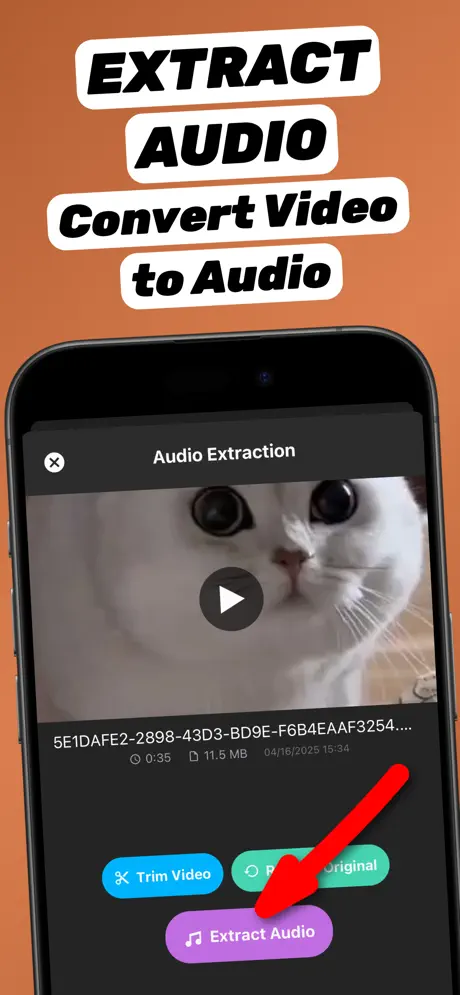
1.Open the app and pick a video
Launch Extract Audio from Video⁺ and choose a video from your Photos library or the Files app. Shortcut: in Photos, tap Share on the video and choose Extract Audio.
-
2.Tap Trim Video
On the Audio Extraction screen tap Trim Video to open the timeline.
-
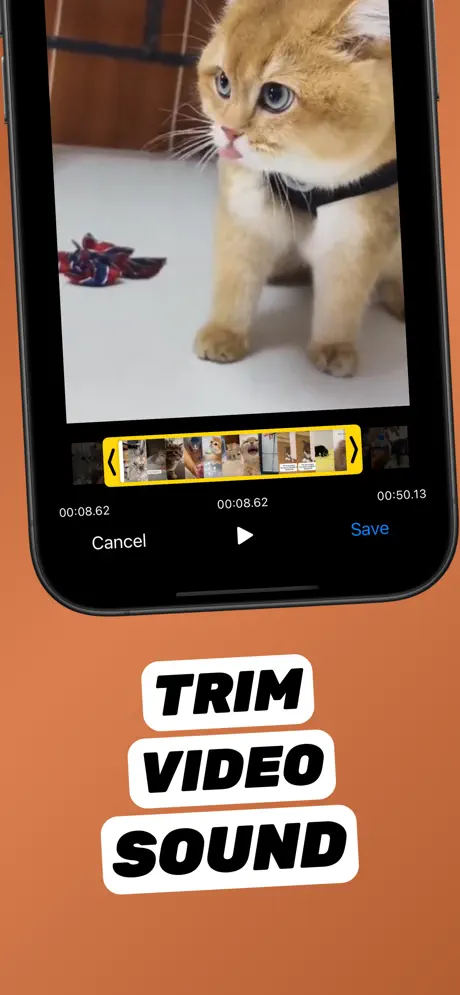
3.Drag the handles
Drag the yellow left handle to the start and the right handle to the end. The time labels show the exact selection. Tap play to preview, then Save.
-
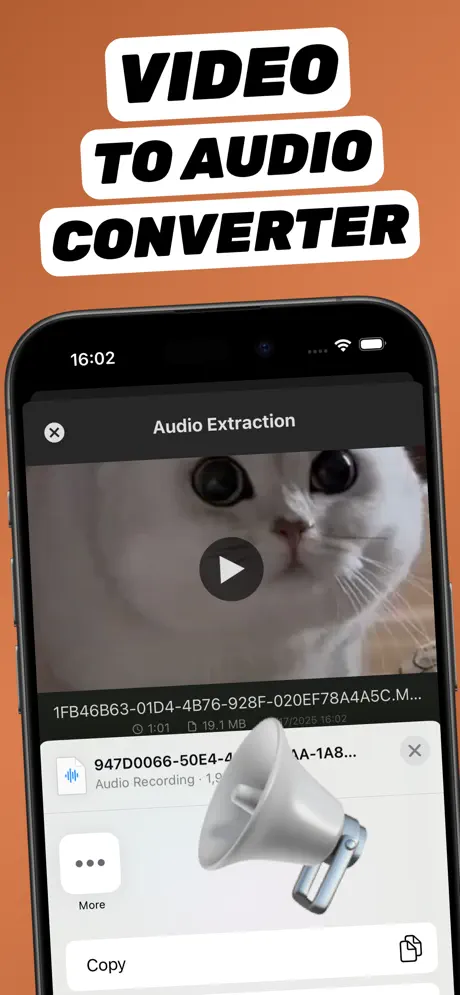
4.Extract and save the clip
Tap Extract Audio. Only the trimmed part is exported. Share it or save it to Files.
Extract Audio from Video⁺Free on the App Store · MP3 & M4A · on-device

Precision tips
- Leave half a second before and after speech so words are not cut.
- For ringtones keep the selection under 30 seconds.
- Need several clips from one video? Repeat the trim for each part — every export is stored in your library.
Good things to trim out
A single line from a speech, the chorus of a song, a sound effect for an edit, your child’s first words, or the one important minute of a long meeting recording.
Frequently asked questions
Can I cut the audio from a video on iPhone?
Yes. Trim the video to the section you need in Extract Audio from Video⁺, then extract; only that section is saved as audio.
Does trimming change my original video?
No. The original video in Photos stays untouched; only the exported audio is trimmed.
Can I extract several parts from one video?
Yes. Trim and extract again for each part you need.