A song at a wedding, a friend’s cover, the music from your own edit — sometimes the sound is the part you want to keep. Here is how to save it as a standalone music file.
Step by step
-
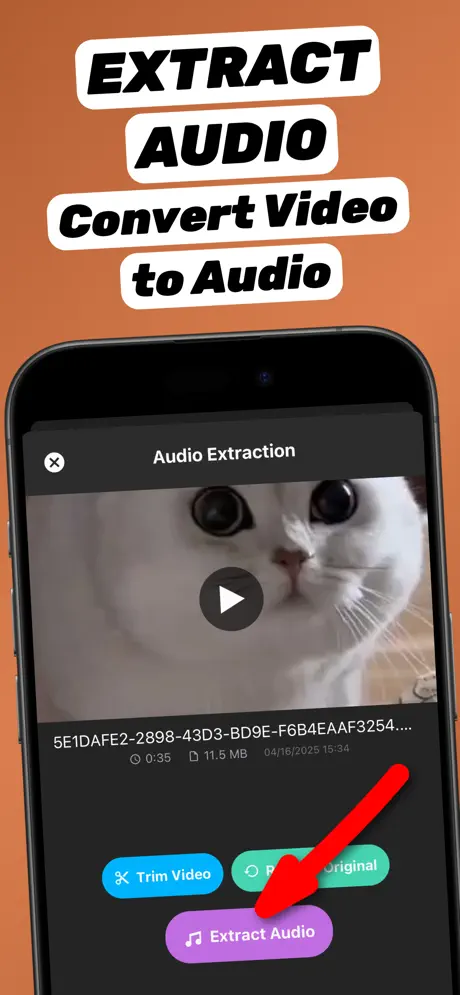
1.Share the video to the app
Open the video in Photos or Files, tap the Share button and choose Extract Audio. The app opens with the video already loaded.
-
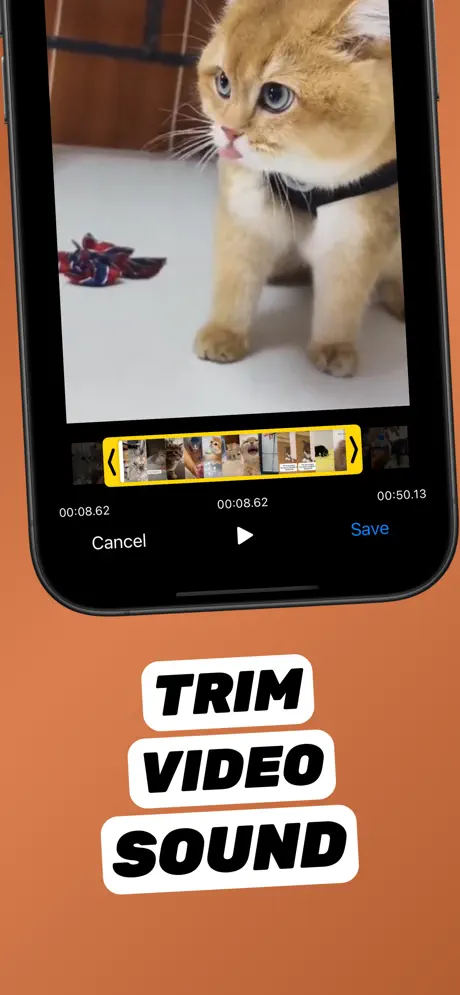
2.Trim around the song
Tap Trim Video and drag the yellow handles so only the song is selected. Play it to check the start and end.
-
3.Tap Extract Audio
Tap Extract Audio. The soundtrack is converted on your iPhone in seconds — nothing is uploaded.
-
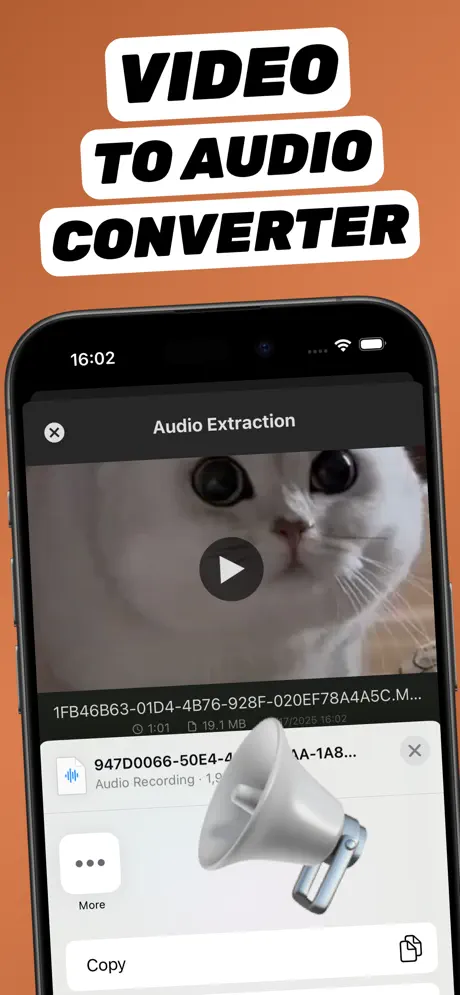
4.Save or share the audio file
The new audio file appears in your library. Tap Share to save it to Files, AirDrop it, or send it to any app.
Extract Audio from Video⁺Free on the App Store · MP3 & M4A · on-device

Tips for the best sound
- Trim off talking and applause at the start and end.
- Choose MP3 for car stereos and older players, M4A for Apple devices.
- Rename the file in Files (long-press → Rename) so you can find it later.
A note on copyright
Save music from videos you recorded yourself or have the rights to. Commercial songs are protected by copyright — personal copies of your own recordings are fine; re-publishing someone else’s music is not.
Make it your ringtone
Found a 30-second part you love? Turn it into a ringtone.
Frequently asked questions
How do I get the song from a video on my iPhone?
Share the video to Extract Audio from Video⁺, trim around the song and tap Extract Audio. The song is saved as an audio file.
Can I add the extracted song to Apple Music?
The Music app on iPhone cannot import local files directly. Keep the file in Files, or sync it from a Mac or PC.
Can I save music from a video I got in Messages?
Yes. Save the video to Photos first, then extract the audio.