Screen recordings are a common way to capture a voice message, a call on speaker, or a clip from an app. Here is how to keep just the audio.
Step by step
-
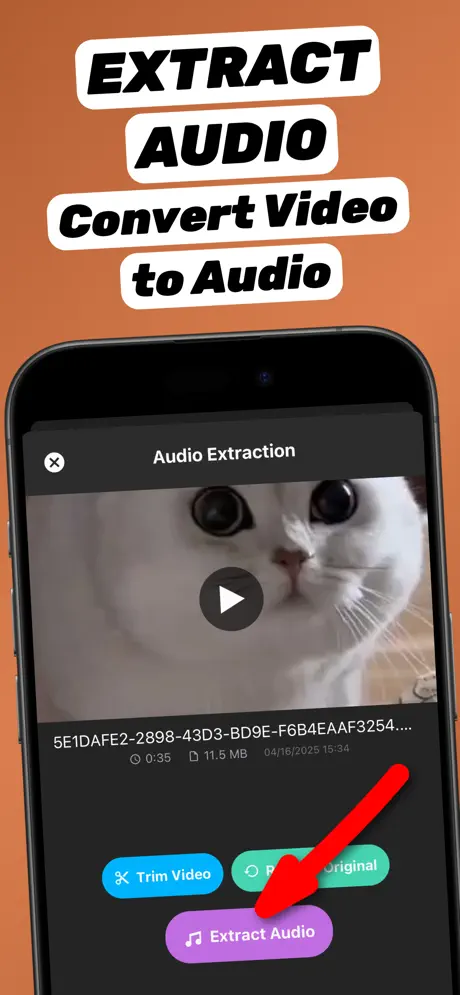
1.Find the recording in Photos
Screen recordings appear in Photos → Media Types → Screen Recordings.
-
2.Share to Extract Audio
Open the recording, tap Share and choose Extract Audio.
-
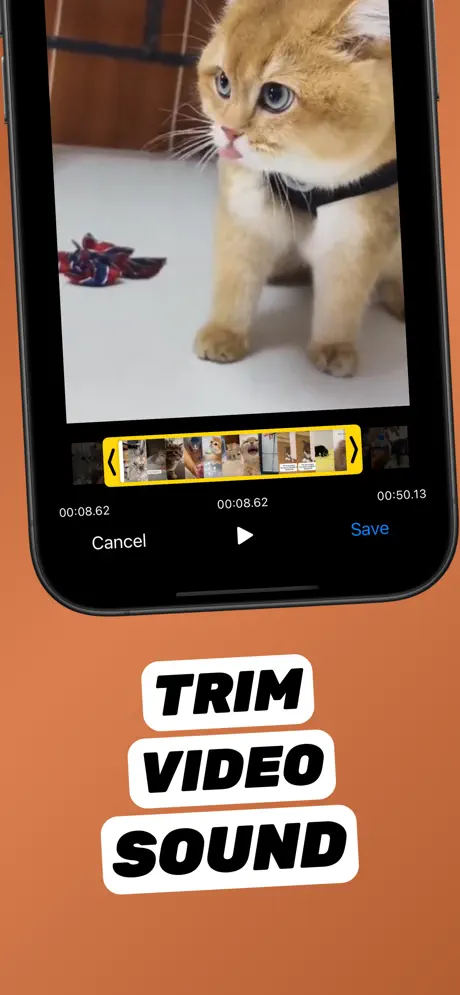
3.Trim to the part you need (optional)
Tap Trim Video, drag the yellow handles to the start and end of the part you want, preview it, and tap Save.
-
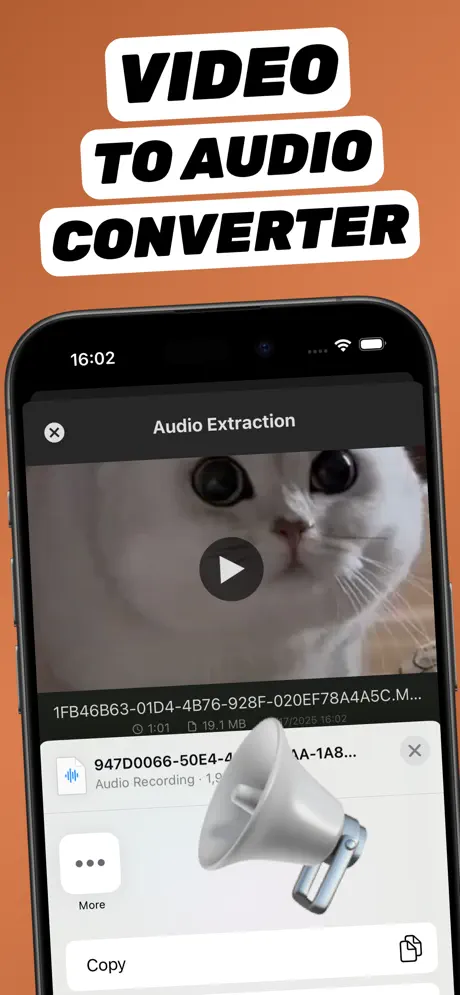
4.Extract and save
Tap Extract Audio and save the MP3 or M4A to Files.
Extract Audio from Video⁺Free on the App Store · MP3 & M4A · on-device

Why is my screen recording silent?
- Microphone off: in Control Center, long-press the Screen Recording button and tap Microphone to record your voice.
- Silent mode: some app sounds are muted when the phone is in silent mode.
- Protected content: many streaming apps block audio in screen recordings — that is by design and cannot be bypassed.
Respect privacy
Only record and save calls or conversations with the consent of everyone involved, and follow the recording laws where you live.
Frequently asked questions
Can I convert a screen recording to MP3?
Yes. Screen recordings are regular videos, so you can extract their audio as MP3 or M4A.
Where are screen recordings saved on iPhone?
In the Photos app, under Media Types → Screen Recordings.
Why can I not hear audio in my screen recording?
The microphone was off or the app you recorded blocks audio capture. Check that the recording plays with sound before extracting.